Mail (IMAP/SMTP)
How to configure the Mail MCP connector with IMAP and SMTP
The Mail integration lets the chatbot read and send email through any IMAP and SMTP server. The MCP server acts as both an OAuth 2.1 Authorization Server and a Resource Server — the user authenticates by entering their IMAP/SMTP username and password into the OAuth login form, and the credentials are encrypted into JWE access and refresh tokens.
The hosted Mail MCP server runs mail_mcp version 1.0.0.
Create Connector
In the chatbot admin panel (Admin → Connectors), create a new connector:
| Field | Value |
|---|---|
| Integration Type | MCP |
| Name | |
| URL | https://mail.mcp.mitigate.dev/mcp |
| Transport Type | Streamable HTTP |
| Authentication Type | OAuth 2.1 |
| OAuth Client ID | (provided by Mitigate) |
| OAuth Client Secret | (provided by Mitigate) |
| OAuth Scopes | (leave blank) |
This MCP server does not support Dynamic Client Registration (RFC 7591). The Client ID encodes the IMAP/SMTP server configuration; one client must be issued per mail server. See Requesting Access below.
There are no OAuth scopes — access is scoped to the IMAP/SMTP account the user signs in with during the OAuth flow.
Requesting Access
The Mail MCP server is hosted by Mitigate. To request a Client ID and Client Secret, contact us at ai@mitigate.dev with the following details:
| Field | Description |
|---|---|
| IMAP host | IMAP server hostname, e.g. imap.example.com |
| IMAP port | IMAP port. Defaults to 993 |
| IMAP SSL | Whether IMAP uses SSL/TLS. Defaults to true when port is 993 |
| SMTP host | SMTP server hostname, e.g. smtp.example.com |
| SMTP port | SMTP port. Defaults to 465 |
| SMTP SSL | Whether SMTP uses SSL/TLS. Defaults to true when port is 465 |
Authentication Flow
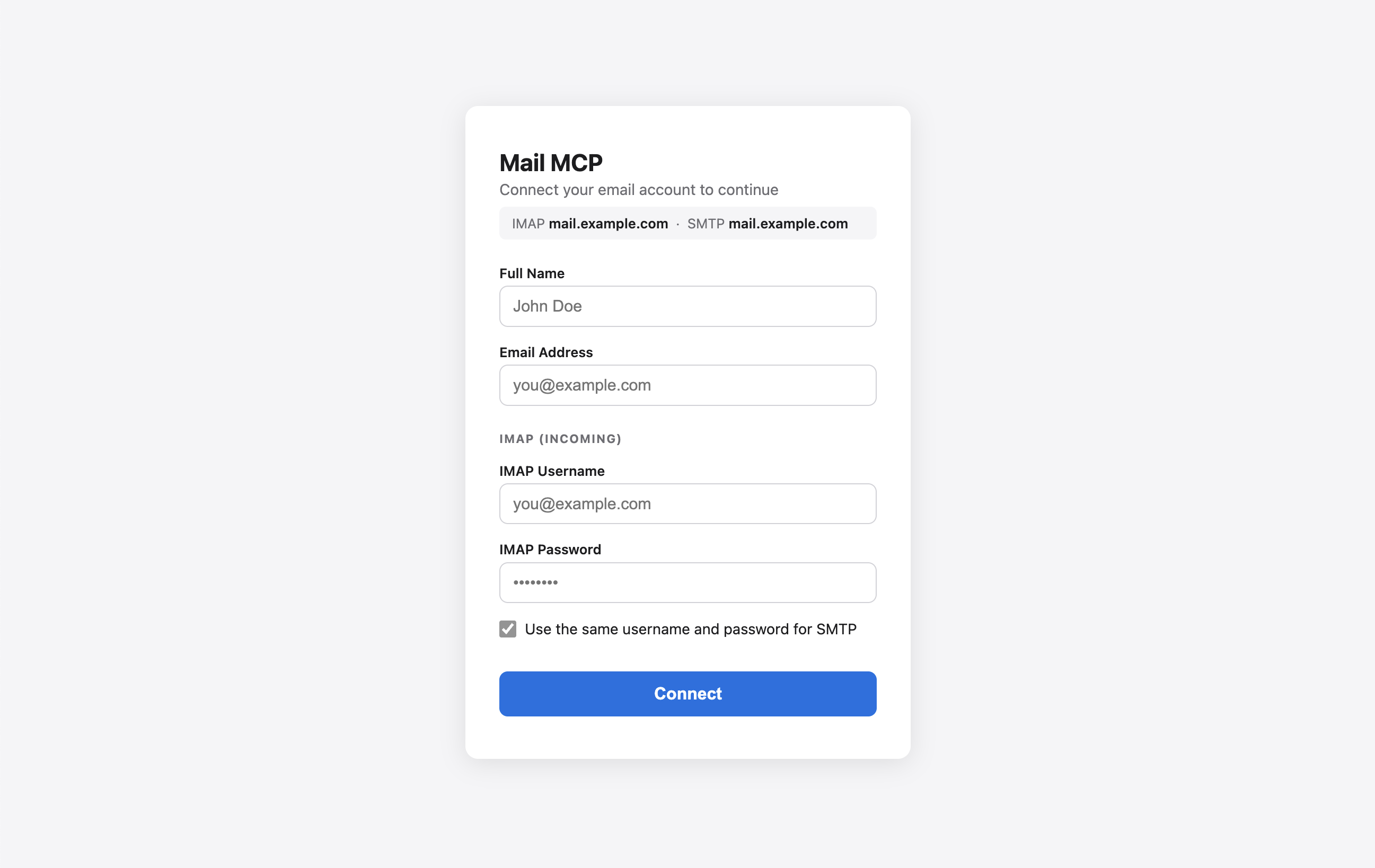
- The user is redirected to the Mail MCP OAuth authorization page
- The page shows the IMAP and SMTP host extracted from the
Client ID - The user enters their Full Name, Email Address, and IMAP username and password (many providers require an app-specific password rather than the account password). By default the IMAP credentials are reused for SMTP; uncheck Use the same username and password for SMTP to enter separate SMTP credentials
- The server validates both the IMAP and SMTP login live; on failure an error banner is shown
- On success the credentials are encrypted into a JWE access token (8h TTL) and refresh token (30d TTL); the chatbot stores these tokens and uses them for every MCP call
Assign to Workspace
In Admin → Workspaces, edit your workspace and add the Mail connector.
Usage Examples
Once connected, users can interact with their mailbox through natural language:
- "List my unread emails"
- "Show me the latest 5 messages in INBOX"
- "Search emails from alice@example.com sent this month"
- "Send an email to bob@example.com with subject 'Meeting notes' and the agenda below"
- "Save a draft reply to the last message"
- "Move the email with UID 12345 to the Archive folder"
- "Mark UID 12345 as read"
Attachments
Attachments are never returned as inline binary data. Inbound attachments are uploaded to S3 on first access and returned as presigned URLs valid for 7 days. Outbound attachments (send_mail_message, create_draft_mail_message) are also referenced by S3 presigned URLs.
Tools
List Mailboxes
list_mailboxes
List all IMAP mailboxes/folders.
List Mail Messages
list_mail_messages
List messages in an IMAP folder with pagination.
Parameters:
- folder - Mailbox folder name
- page - Page number. Defaults to 1
- per_page - Messages per page. Defaults to 20
Get Mail Message
get_mail_message
Fetch a full email message including body and attachment URLs. Attachments are uploaded to S3 and returned as presigned URLs.
Parameters:
- folder - Mailbox folder name
- uid - Message UID
Search Mail Messages
search_mail_messages
Search messages in an IMAP folder using raw IMAP SEARCH criteria.
Parameters:
- folder - Mailbox folder name, e.g.
INBOX - query - Raw IMAP SEARCH criteria, e.g.
UNSEENorFROM alice@example.com SINCE 01-Jan-2025
Send Mail Message
send_mail_message
Send an email via SMTP and append it to the Sent folder via IMAP.
Parameters:
- to - Recipient address(es), comma-separated
- cc - CC recipient address(es), comma-separated
- bcc - BCC recipient address(es), comma-separated
- subject - Subject line
- text_body - Plain-text body
- html_body - HTML body (optional)
- attachment_urls - S3 presigned URLs to attach
- folder - IMAP folder to save the sent message. Defaults to
Sent
Create Draft Mail Message
create_draft_mail_message
Save an email as a draft via IMAP APPEND.
Parameters:
- to - Recipient address(es), comma-separated
- cc - CC recipient address(es), comma-separated
- bcc - BCC recipient address(es), comma-separated
- subject - Subject line
- text_body - Plain-text body
- html_body - HTML body (optional)
- attachment_urls - S3 presigned URLs to attach
- folder - Target folder. Defaults to
Drafts
Delete Mail Message
delete_mail_message
Delete a message by UID (marks as \Deleted and expunges).
Parameters:
- folder - Mailbox folder name
- uid - Message UID
Move Mail Message
move_mail_message
Move a message to another folder. Uses IMAP MOVE when the server supports it, otherwise falls back to COPY + DELETE.
Parameters:
- folder - Source folder
- uid - Message UID
- destination - Destination folder
Update Mail Message Flags
update_mail_message_flags
Add or remove IMAP flags on a message (e.g. mark as read or flagged).
Parameters:
- folder - Mailbox folder name
- uid - Message UID
- add - Flags to add, e.g.
['\\Seen', '\\Flagged'] - remove - Flags to remove